

Registration & Onboarding
Register your user account and complete your organisation's onboarding.
Signing up with Zertiban is done through the following steps:
- User registration
- Organisation onboarding
- Post-Onboarding
Register
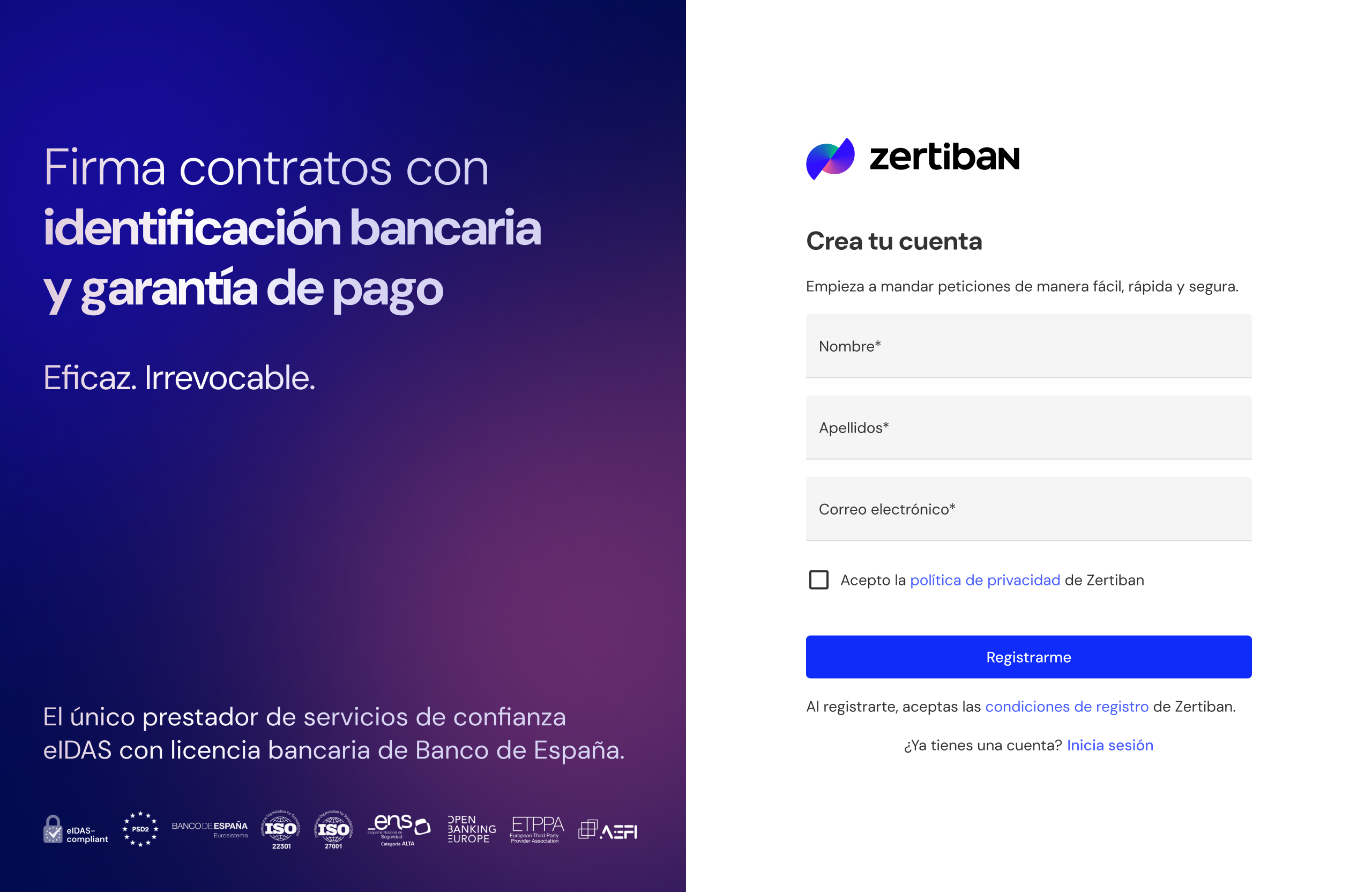
Register with Zertiban: A user must register to gain access to and be able to use the Zertiban platform.
Access the Zertiban login: After completing the registration form, the user will receive an email to activate their account. Once activated, the user can log in to the platform and start the organisation onboarding flow, or view the profile of an organisation they have been invited to.
Onboarding
The onboarding flow depends on the environment you are working in. Pick yours:
Sandbox
A single guided step. The IBAN and webhook are registered by email.
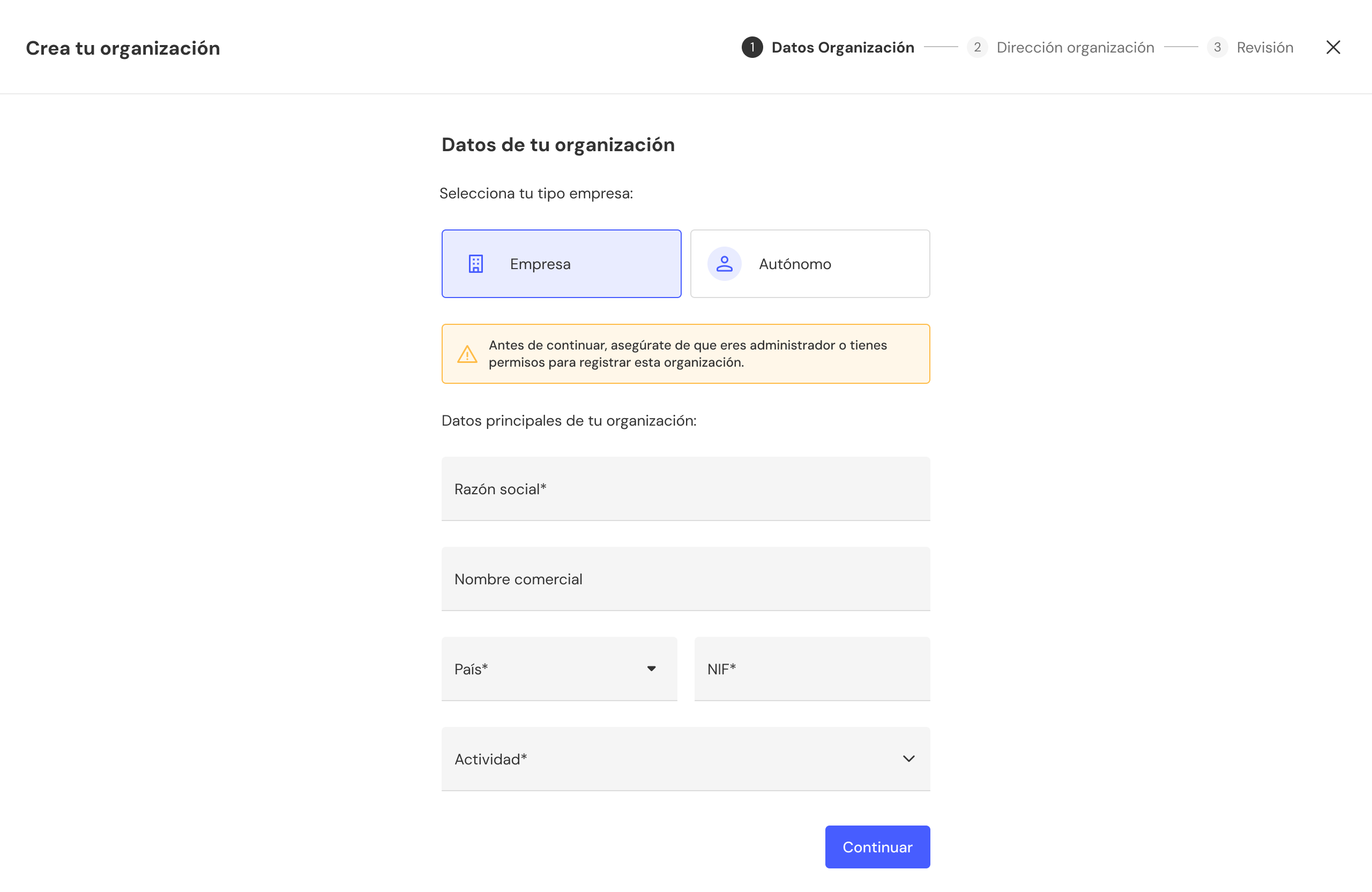
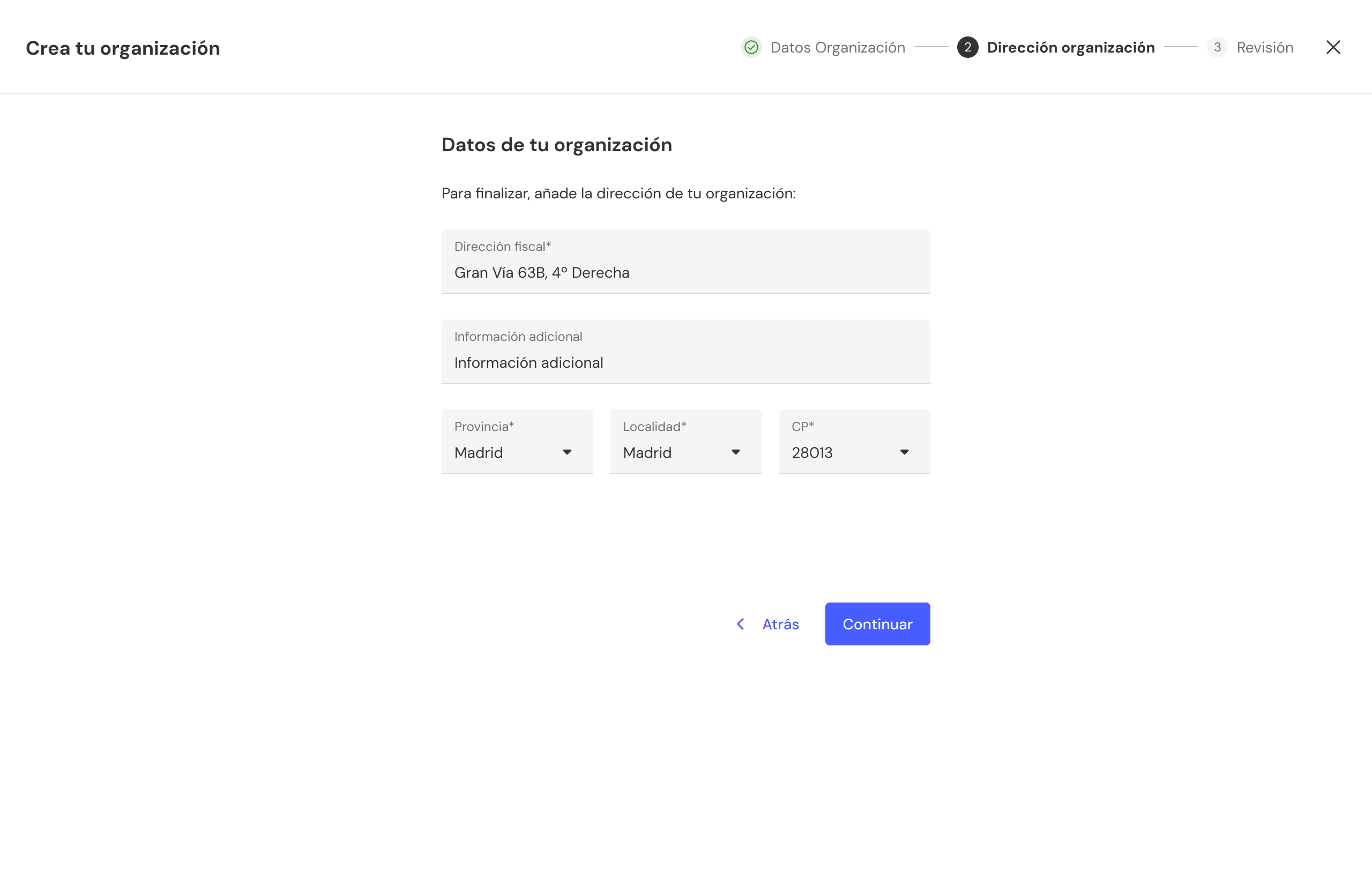
Organisation registration
Fill in the details depending on whether you are a Sole Trader or a Company. Once saved, you will be taken to the dashboard with your businessUuid already assigned.
In sandbox, KYC is not required.
By email: IBAN and webhook registration
You can request both in a single email to [email protected] including:
- Your
businessUuid - The IBAN where you want to receive payments and the account holder name
- Your HTTPS webhook URL (e.g.
https://your-erp.com/webhooks/zertiban) - Environment: Sandbox
Zertiban will return the creditorAccountUuid for the account and the webhookSecret to validate HMAC signatures.
Production
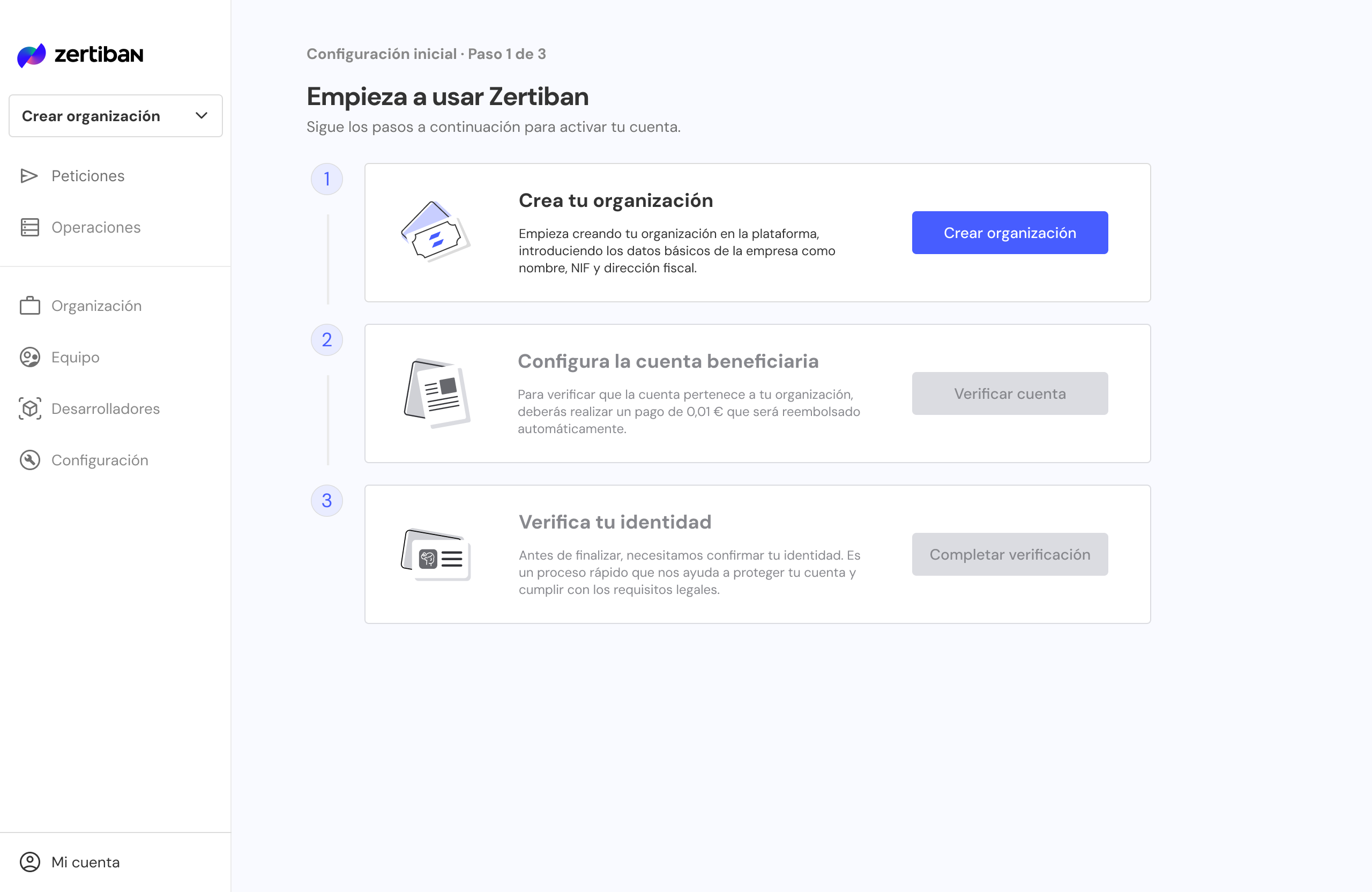
Three guided steps to activate your account + webhook by email.
Organisation registration
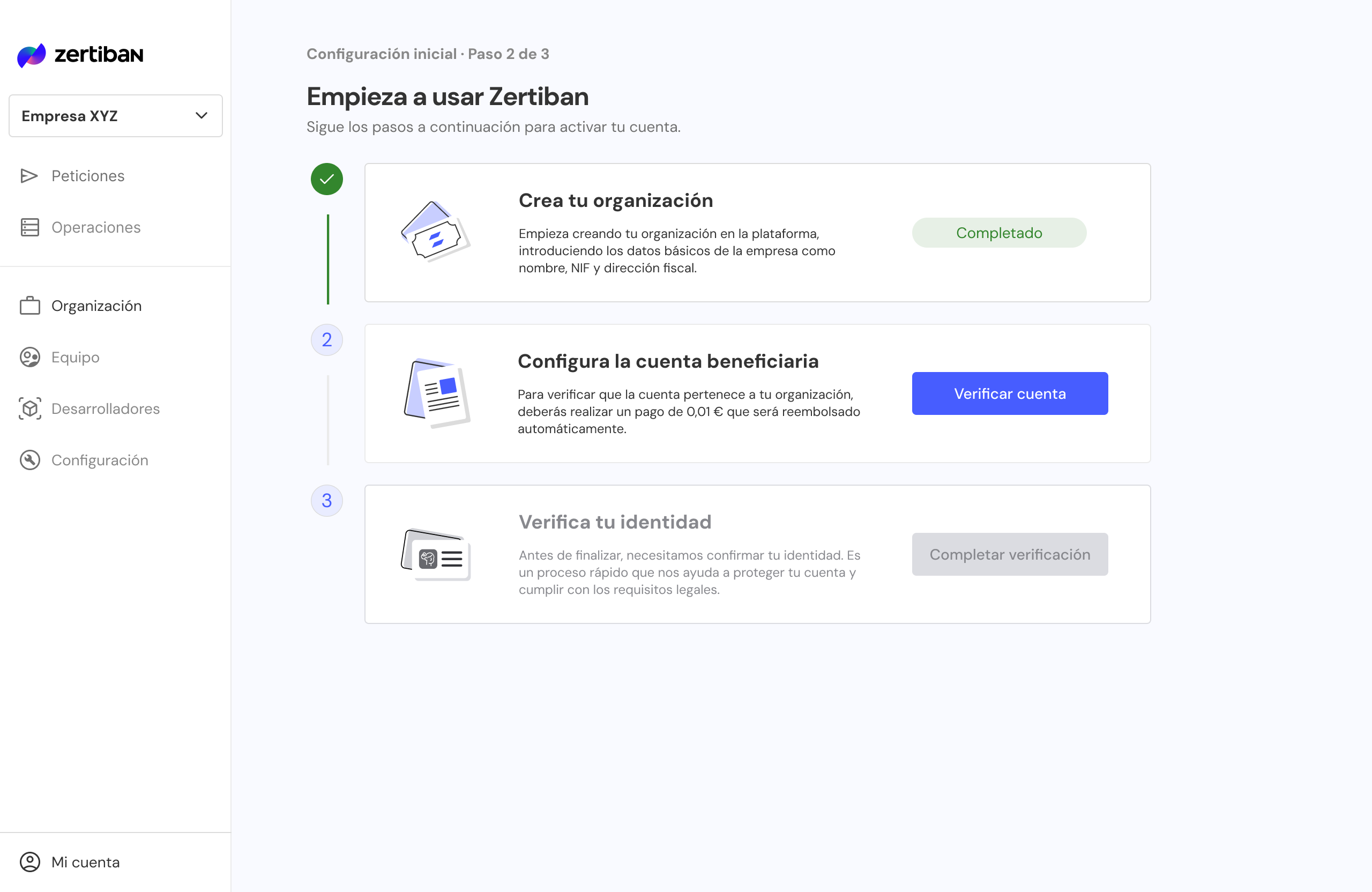
The user must fill in the required details depending on whether they are a Sole Trader or a Company. Once the organisation has been reviewed and created, the user will be taken to the dashboard where they can begin the second step (Beneficiary account setup).
Beneficiary account setup
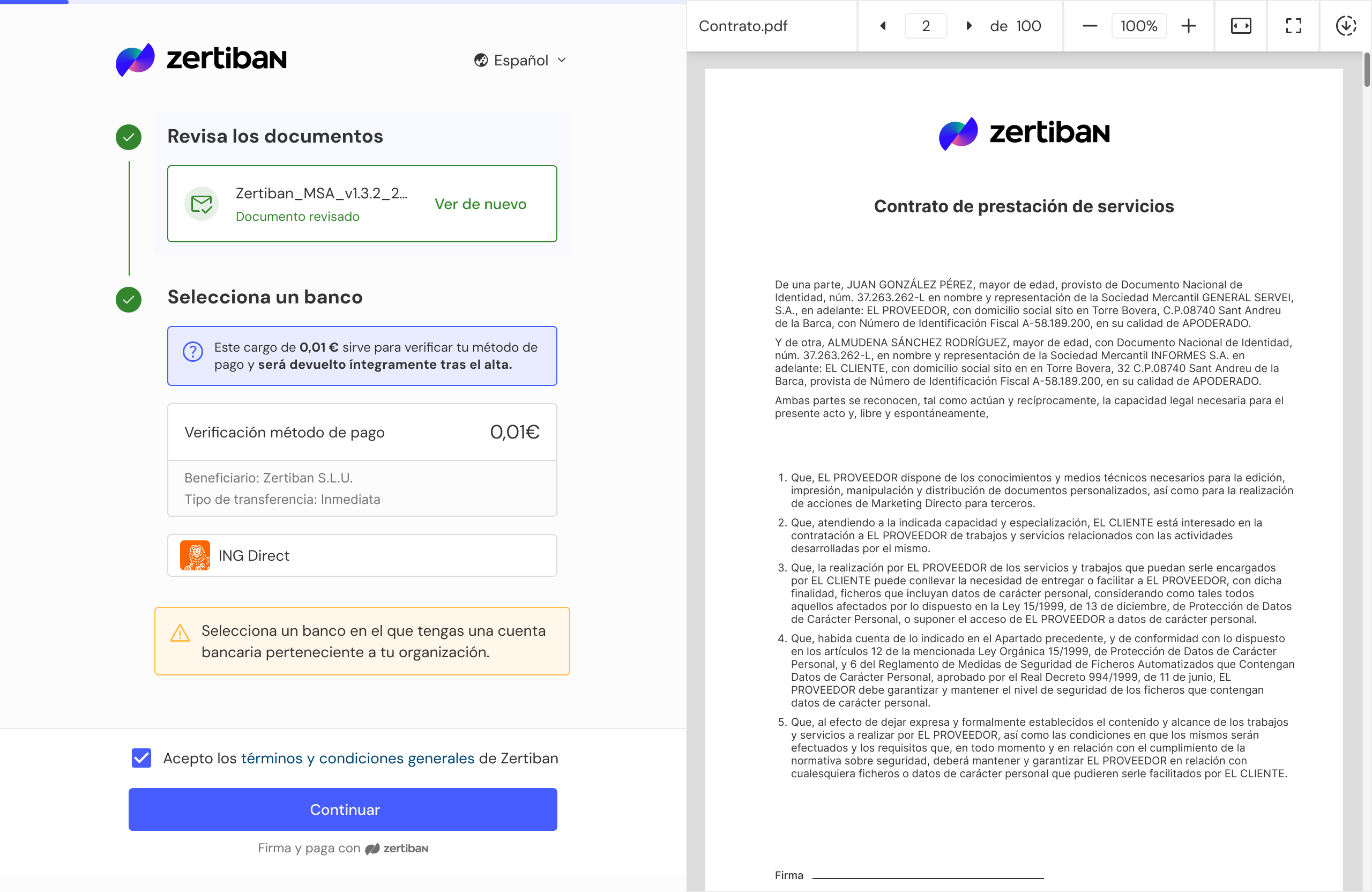
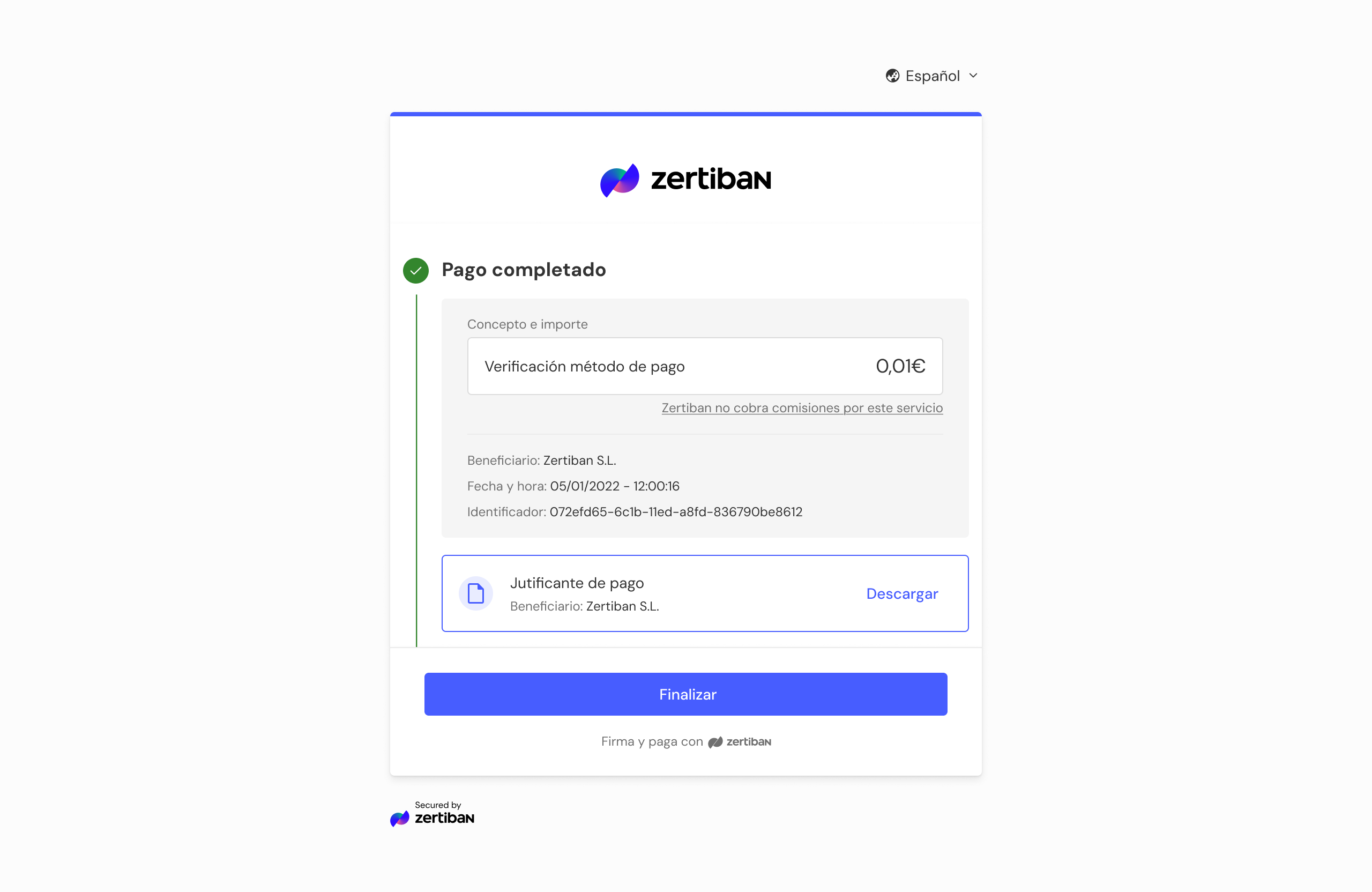
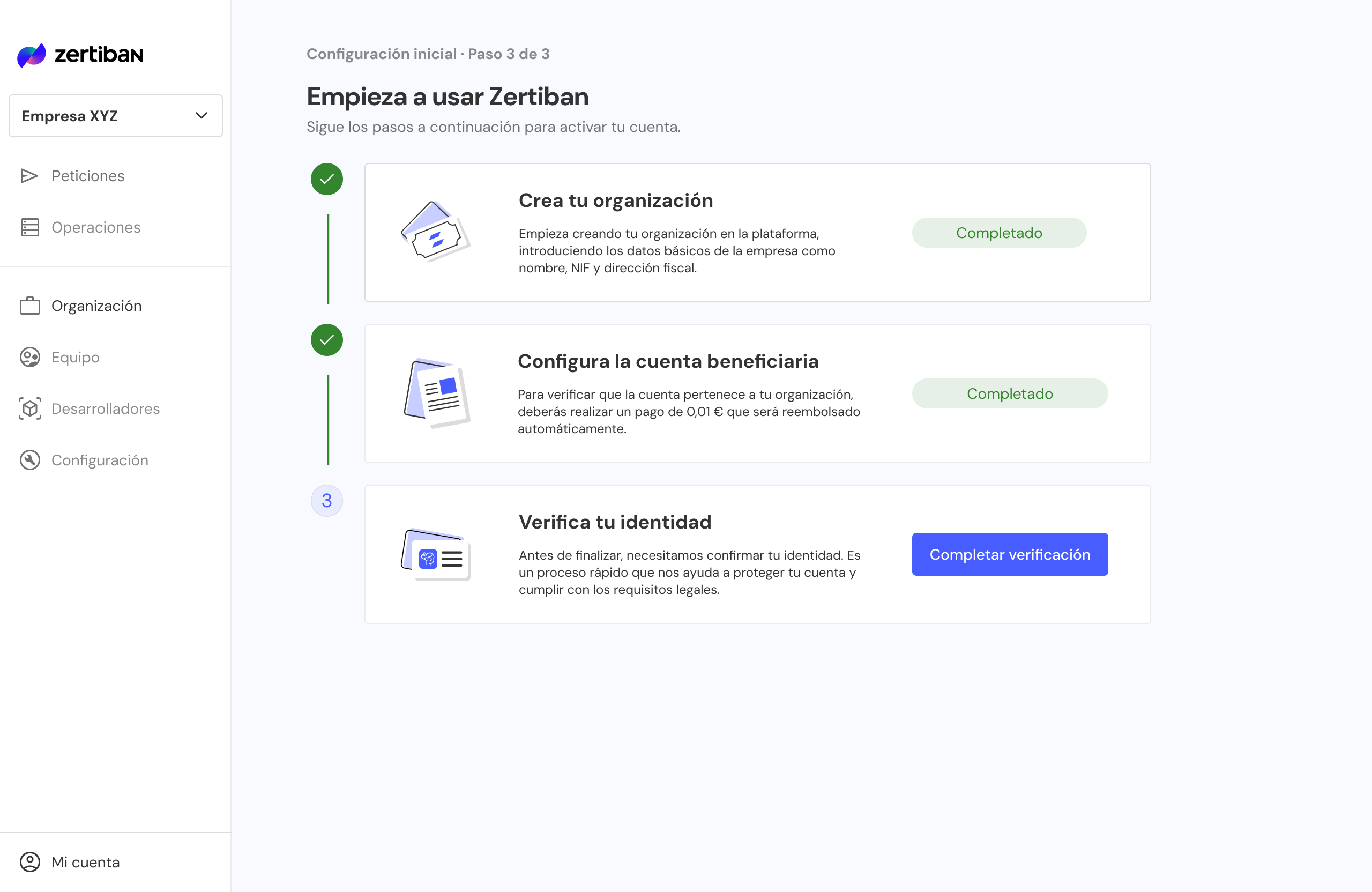
The user reviews the contract and makes a payment of €0.01 from the organisation's beneficiary account. Once verification is complete, the dashboard displays the associated creditorAccountUuid and the third step (Verify your identity) becomes available.
Identity verification
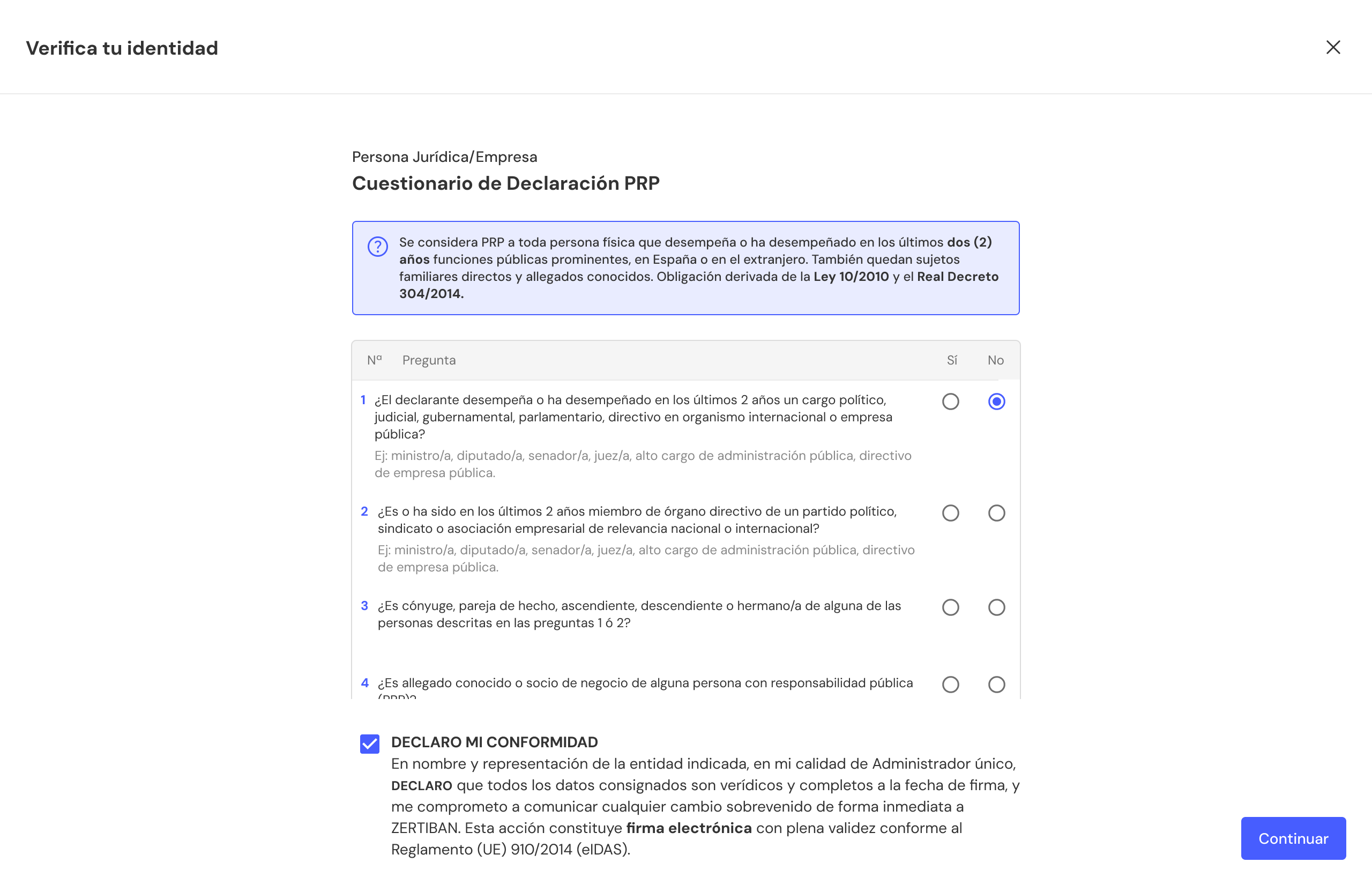
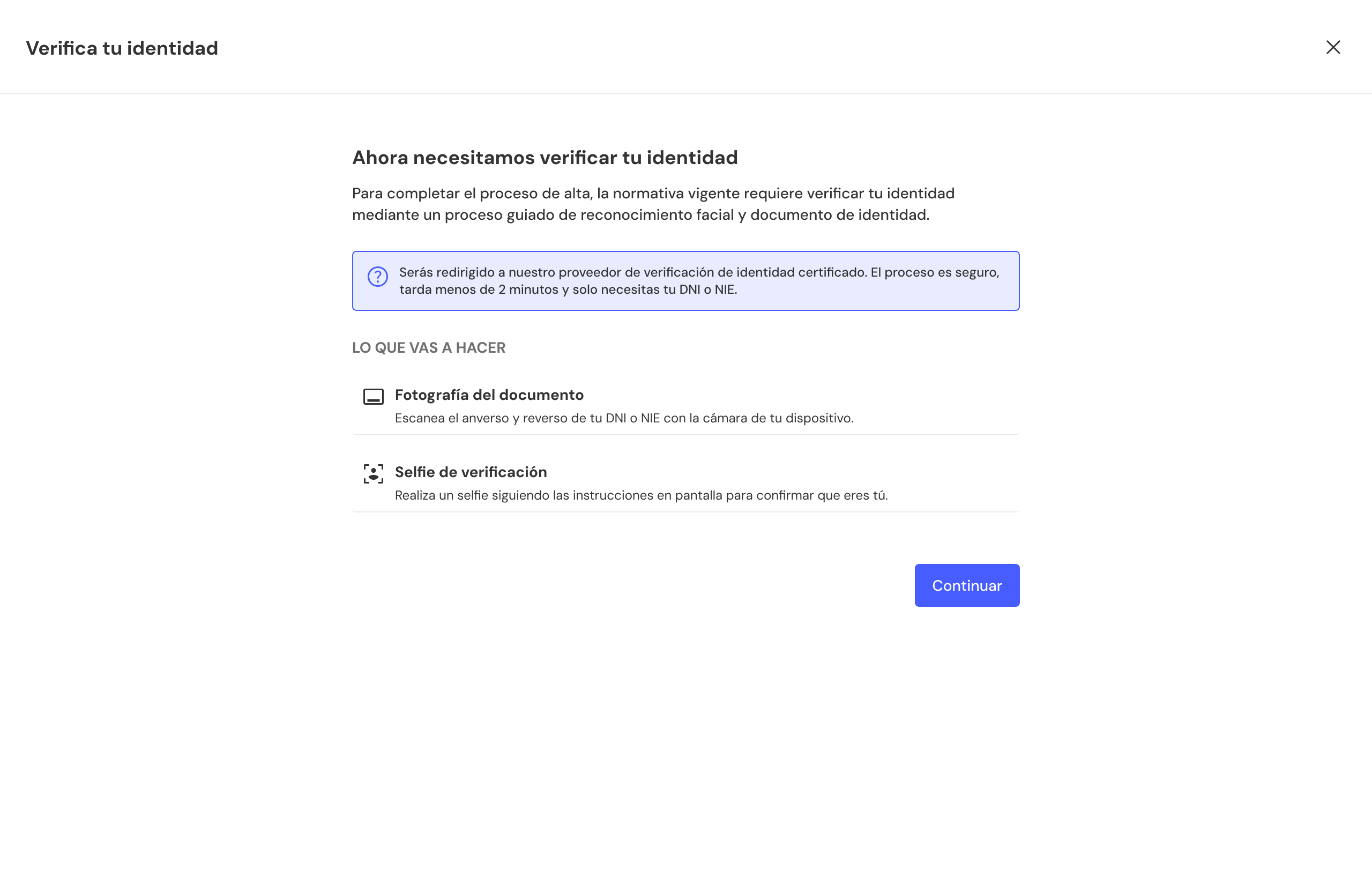
The user must complete the PEP (Politically Exposed Person) form. Finally, regulations require identity verification through a guided facial recognition and identity document process.
By email: Webhook registration
Write to [email protected] with:
- Your
businessUuid - Your HTTPS URL (e.g.
https://your-erp.com/webhooks/zertiban) - Environment: Production
Zertiban registers the endpoint and sends you the webhookSecret to validate HMAC signatures.